
Slotly: Google Forms Sign-Up Sheet for Volunteers
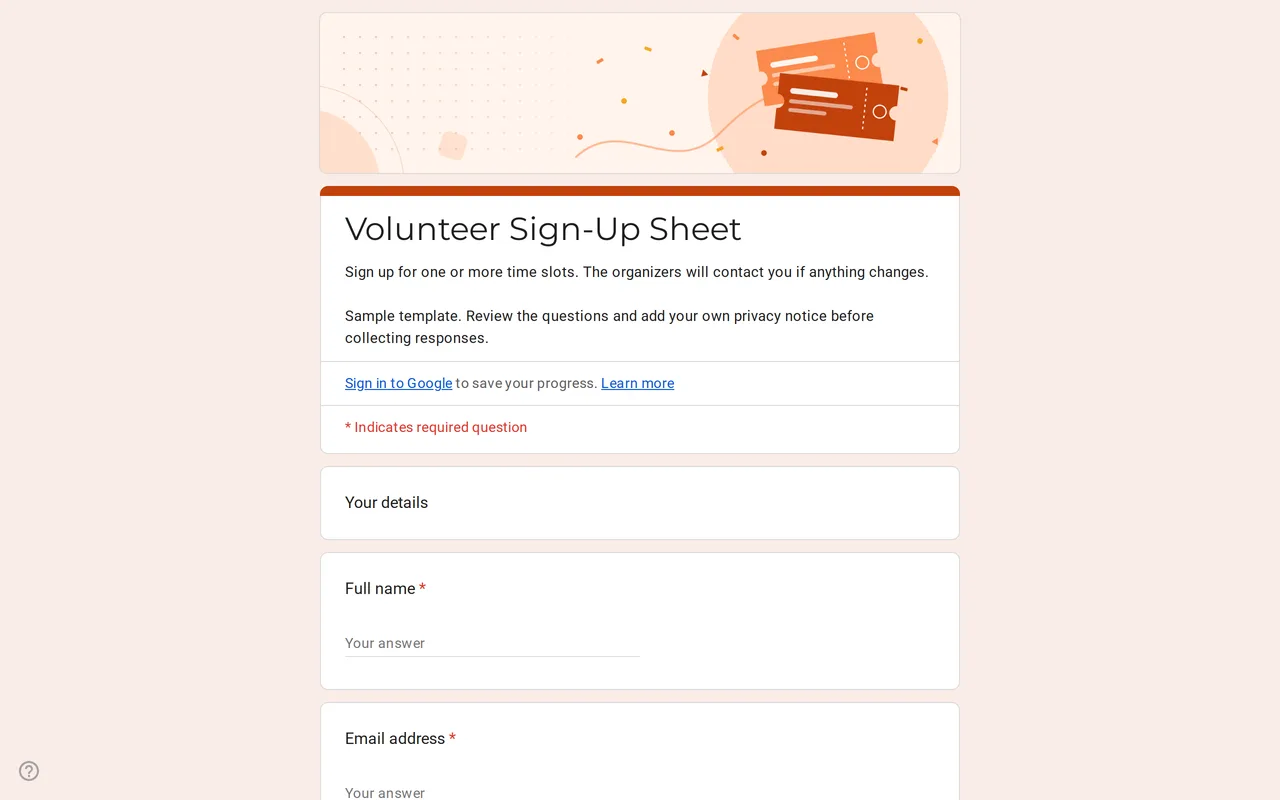
How it works: “Use this template” opens Google’s copy screen. Sign in to your Google account and the form is copied to your own Drive, where you can edit every question. Need help copying the form?
Questions in this Google Forms sign-up sheet
Two pages: contact details, then slots and role.
-
Your details
- Full name * Short answer
- Email address * Short answer
- Phone number Short answer
-
Pick your slots
- Which slots can you take? * Checkboxes
- Role or task you can help with Multiple choice
- Anything the organizers should know? Paragraph
-
Privacy
- I have read the privacy notice * Checkbox
- I would like to hear about future volunteer opportunities by email Checkbox · optional
Slotly is a Google Forms sign-up sheet for volunteers: people leave their contact details, tick the time slots they can cover and pick the role they would like. It suits school fairs, charity events, community cleanups and club open days. Preview the form, then copy it to your Drive and swap the sample shifts for your own dates and times.
A Google Forms sign up sheet with time slots
The form has two pages. Your details asks for a name and email (both required) and an optional phone number for last-minute changes. Pick your slots lists five sample shifts across a Saturday and a Sunday as checkboxes, so one person can take several. A multiple choice question asks which role suits them (setup, welcome desk, food and drinks, cleanup or anywhere needed), and a paragraph box collects anything the organizers should know. The privacy section closes the form.
If each volunteer should take only one shift, change the slot question from checkboxes to multiple choice. For a long list of dates, a dropdown keeps the page short.
Can a Google Form sign up sheet limit each slot?
No, and it is better to know that before you share the link. Google Forms has no per-option capacity: when the Saturday morning shift has enough people, that option stays on the list until you change it. The current editor can close the whole form on a date or after a set number of responses, but that cap covers the form, not each slot. There are three practical ways around it:
- Watch the responses and edit a full slot's label to say it is full, or delete the option.
- Make one copy of the form per slot and close each copy when it fills.
- Install a choice-limiting add-on from the Google Workspace Marketplace, which hides an option once it reaches the number you set. Test it on a spare form first.
Customizing the Google Form sign up sheet template
- Replace the sample slots with your own days and times, one option per shift.
- Rename the roles to the tasks your event really needs.
- Plan your reminders. Google Forms does not send them, so email volunteers yourself from the response spreadsheet a day or two before their shift.
- Replace the bracketed privacy text with your own notice and a link to your privacy policy.
Using a Google Form for a volunteer sign up
Leave "Limit to 1 response" off unless all your volunteers use Google accounts, because it requires everyone to sign in. Link the form to Google Sheets from the Responses tab: each sign-up becomes a row you can filter by slot or role, and that is where you see which shifts are still short. If people need to change their slot, turn on response editing in Settings before sharing.
When the event also needs attendees, pair the sheet with the event registration form or the RSVP form. The rest of the set is in the event Google Form templates, and the copying guide shows how to get your own editable copy.
More templates
-
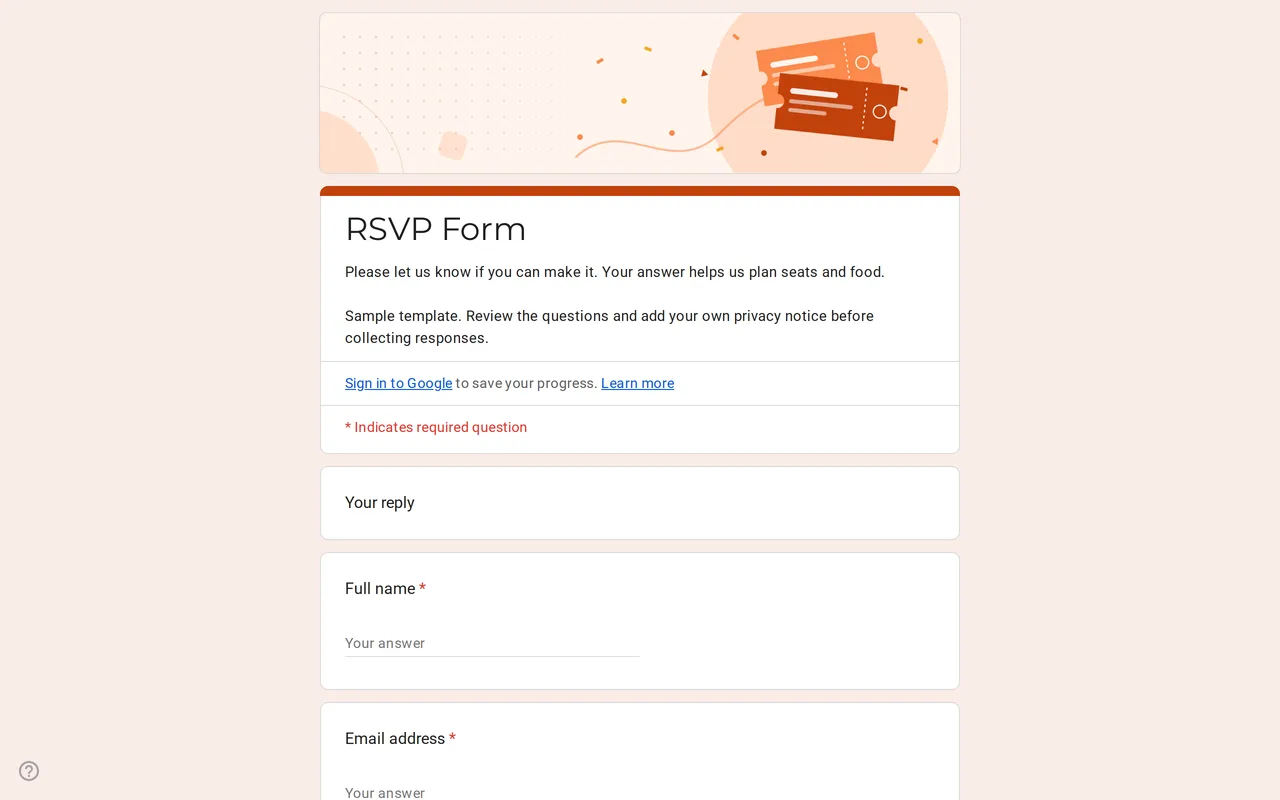 Events Replya: Google Form Template for RSVP Google Forms RSVP template that branches on the reply: guests who say yes add party size, names and menu choice. Preview it and copy it free. View template →
 -
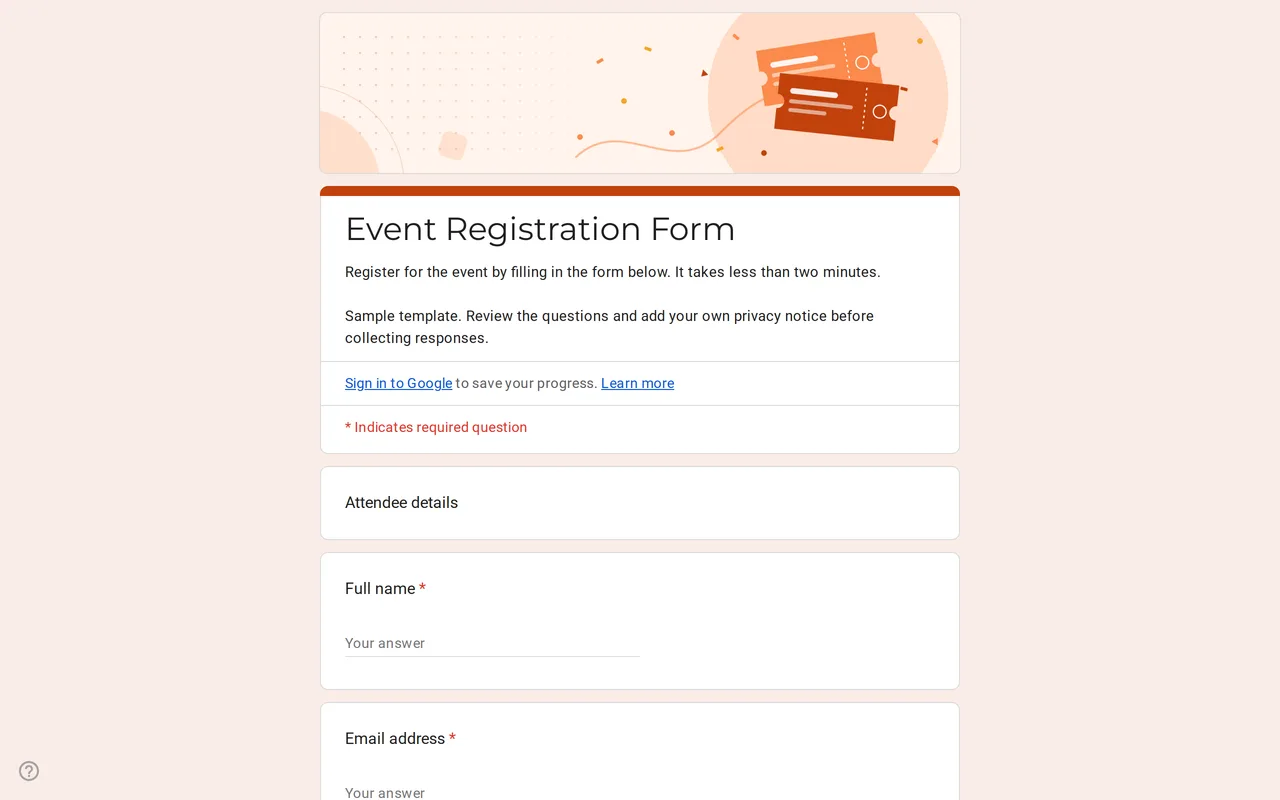 Events Eventra: Google Forms Event Registration Template Google Forms event registration with ticket types, in-person or online attendance and session picks. Preview it, then copy the form free to your Drive. View template →
 -
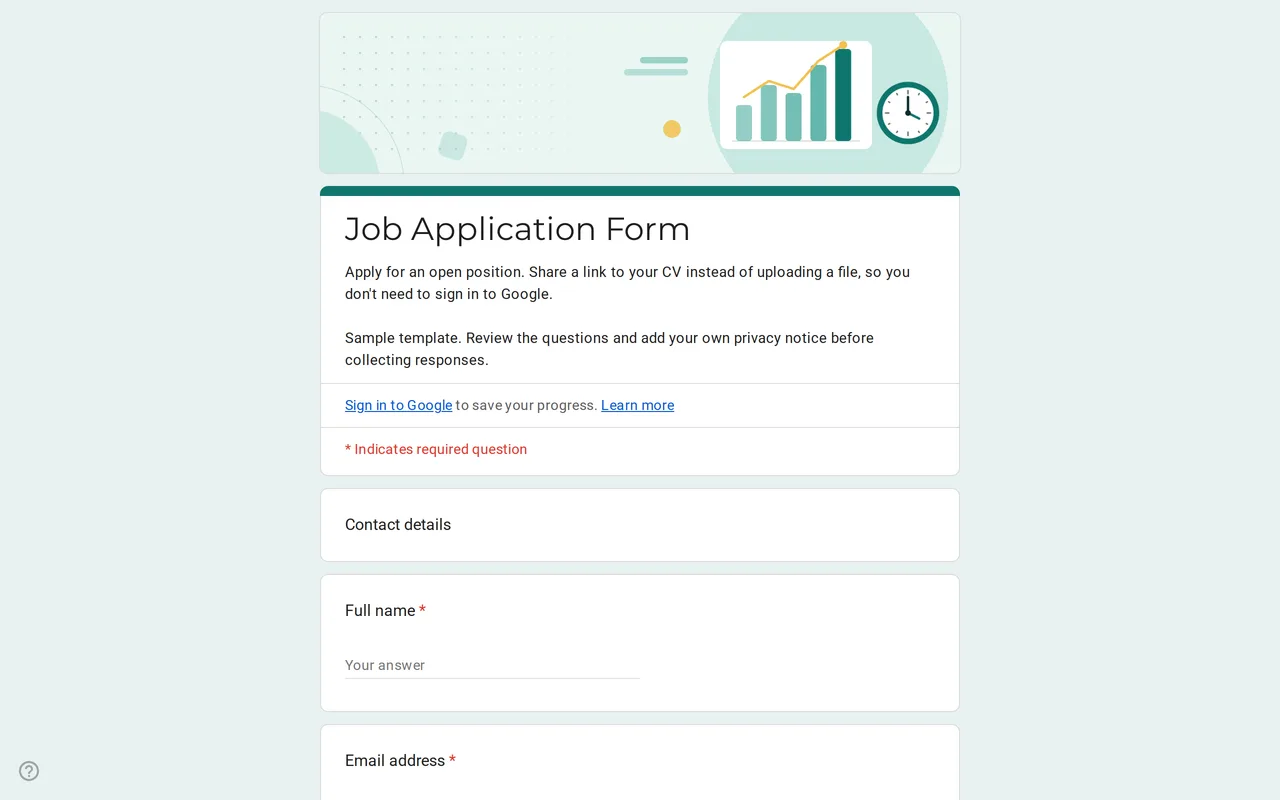 Business Hirova: Google Form Job Application Template Google Forms job application with a role dropdown, start date, experience range and a CV link instead of an upload, so no sign-in is needed. Free. View template →
 -
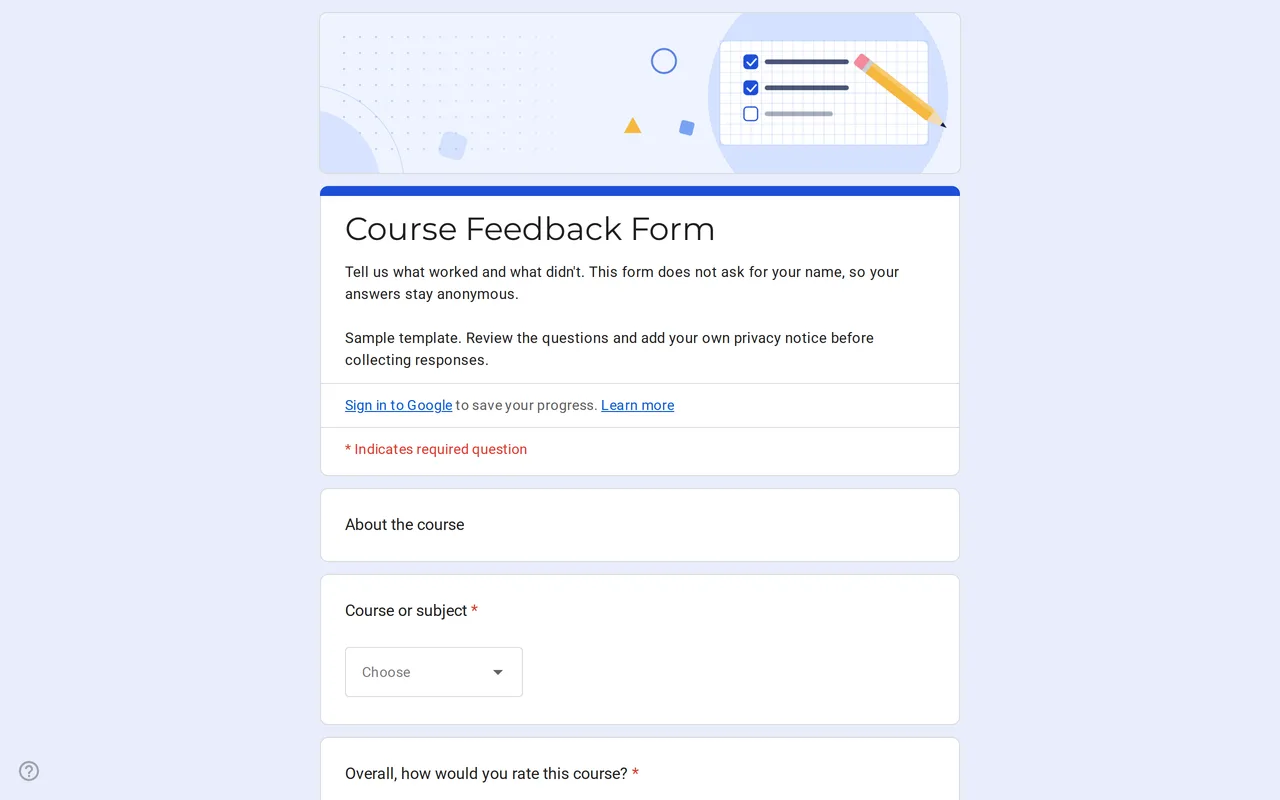 Education Klasso: Course Evaluation Google Form A student feedback Google Form that stays anonymous: overall rating, a grid for pace, materials and assignments, and two open questions. Free to copy. View template →