
Templates
Google Forms for Teachers: Free Templates
-
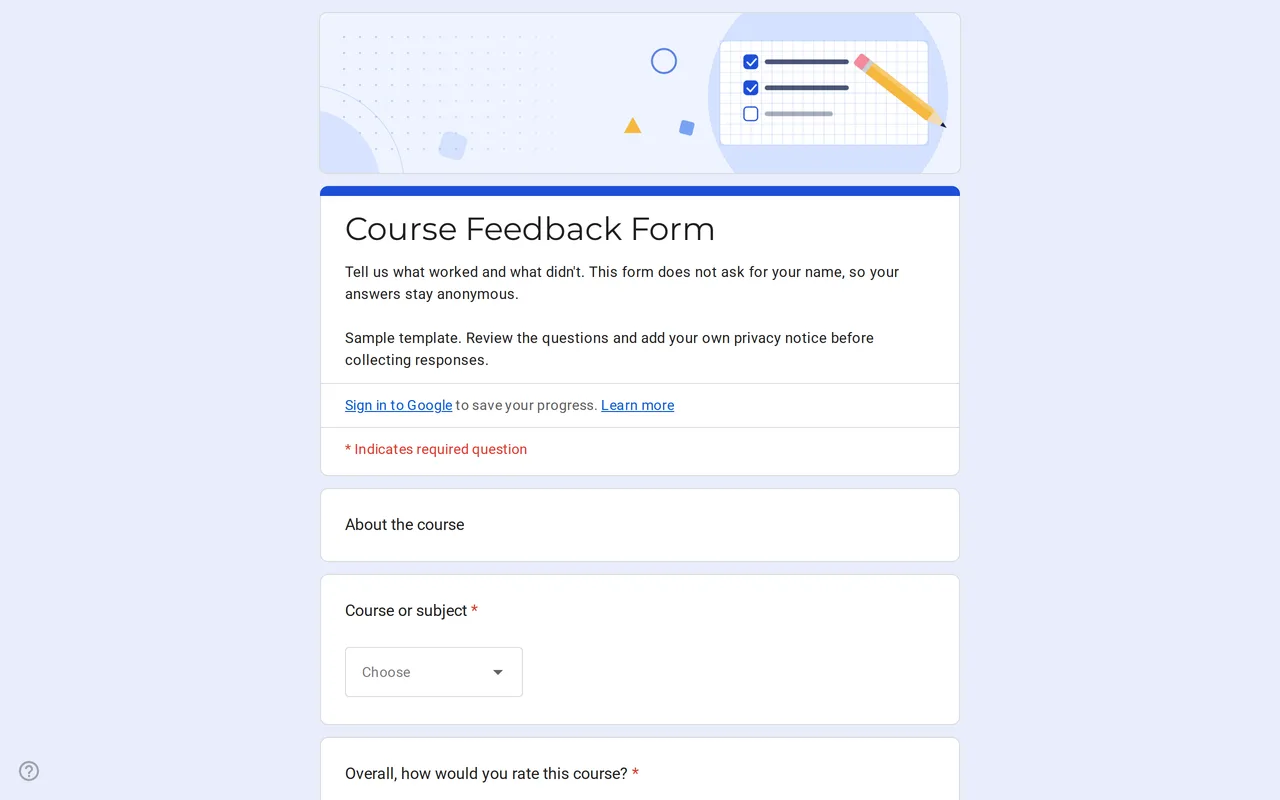 Education Klasso: Course Evaluation Google Form A student feedback Google Form that stays anonymous: overall rating, a grid for pace, materials and assignments, and two open questions. Free to copy. View template →
 -
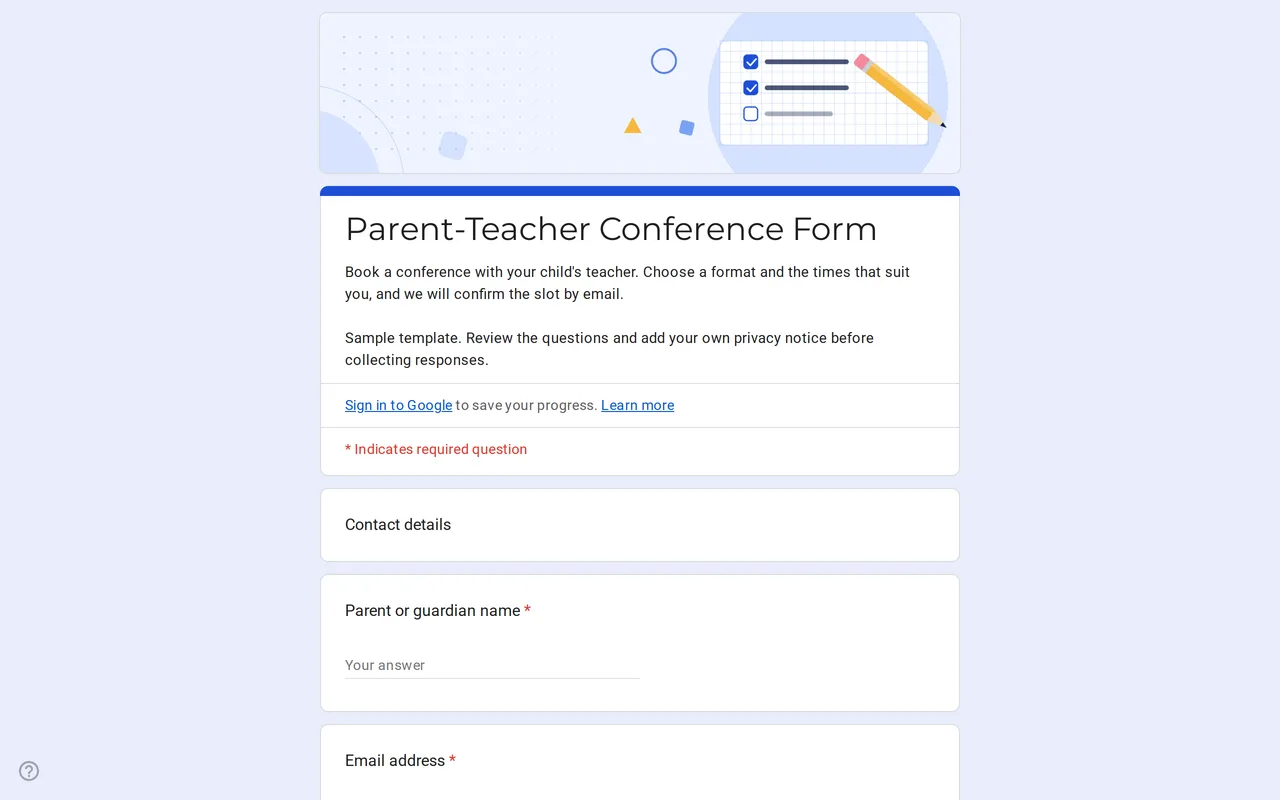 Education Meetrix: Parent Teacher Conference Google Form Template An editable parent teacher conference form for Google Forms: families pick a format, time slots and topics, and you confirm the meeting by email. View template →
 -
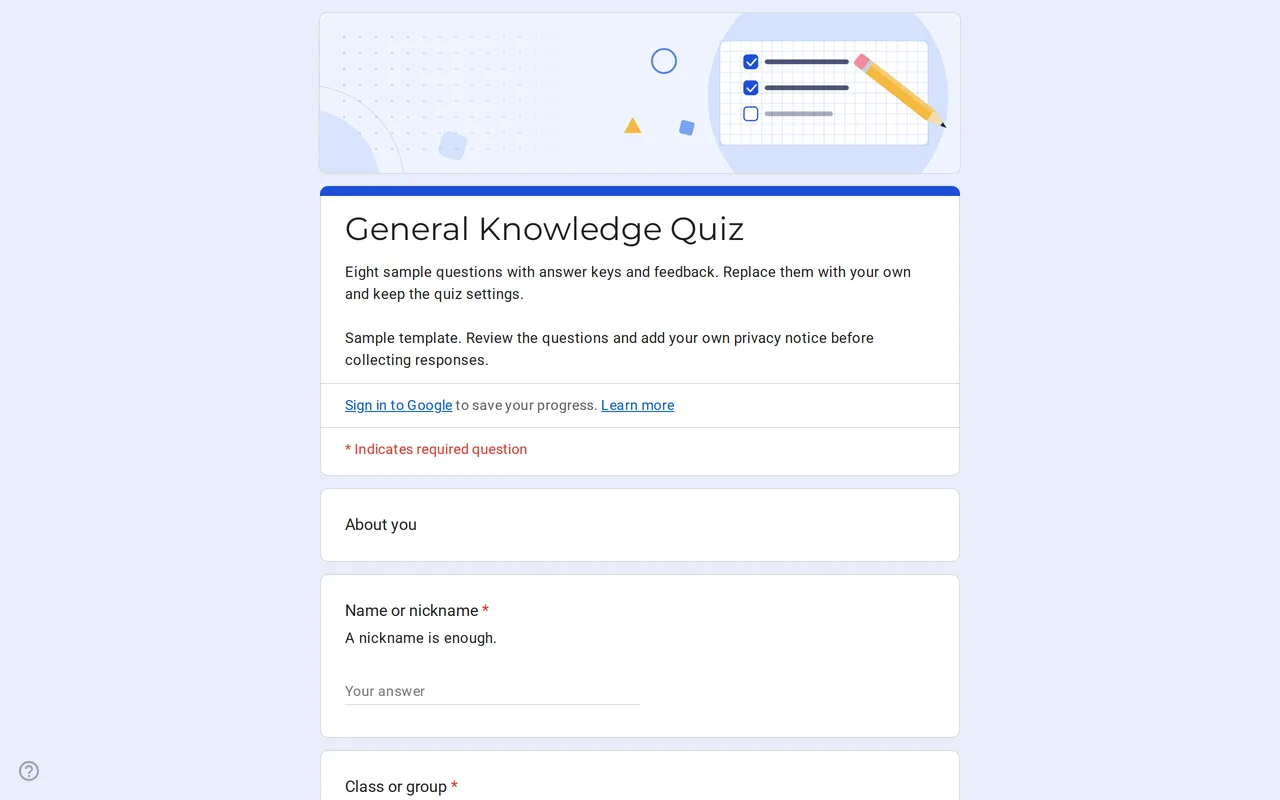 Education Quizora: Free Google Form for Quiz Making A Google Forms quiz template with answer keys, points and feedback already set: eight sample multiple choice and checkbox questions you replace with yours. View template →
The education templates are Google Forms for teachers who would rather adjust a form than build one: a self-grading quiz, a booking form for parent-teacher conferences and an anonymous course feedback form. Each template is a live form you can preview, copy to your own Drive and edit like any other Google Form.
Google Forms templates for teachers in this category
- Quiz template: a name-or-nickname field, a class dropdown and eight sample general-knowledge questions with answer keys, points and feedback. Quiz mode is already on, so scores are calculated as students submit.
- Parent-teacher conference form: parent or guardian contact, the student's first name and class, meeting format (in person, video or phone), preferred time slots and the topics the family wants to cover.
- Course feedback form: course dropdown, an overall rating, a grid for pace, materials, explanations and assignments, and two open questions. It does not ask for names.
Premade Google Forms for the classroom: what to change first
Start with the sample content. Replace the quiz questions with your own, keeping the answer key and points on each one; swap the sample class names in the dropdowns; and rewrite the conference time slots to match your calendar. The forms use generic labels such as Group A or Course B so nothing from a real school is left behind by accident.
Google Forms templates for education and student privacy
School forms often collect data about minors, so these templates ask for as little as possible. The quiz accepts a nickname and does not require an email address. The conference form asks only for the student's first name, with no surname or date of birth. The feedback form is anonymous by design: keep email collection off in the settings and the responses stay unlinked to students. Every form ends with a privacy section where you paste your school's notice, plus a required read-confirmation checkbox.
Google Forms quiz settings teachers should check
In the copied quiz, open the settings to decide when students see their score: right after submitting or later, once you have reviewed the answers. You can also choose whether they see which answers were wrong and the correct answers. Short-answer questions are graded only on exact matches you list in the key, so add accepted variations or review those answers by hand. Responses can be linked to Google Sheets for a gradebook view, and the copying guide covers that step.