
Klasso: Course Evaluation Google Form
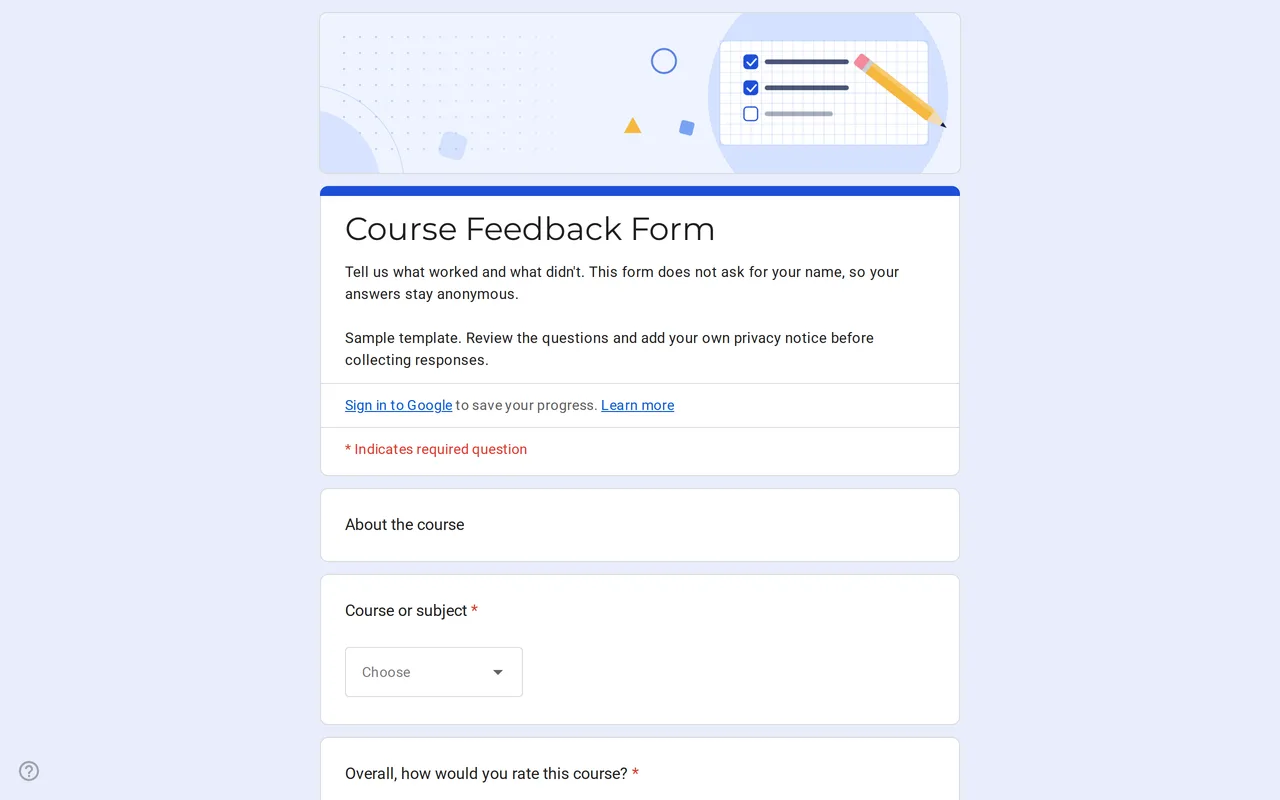
How it works: “Use this template” opens Google’s copy screen. Sign in to your Google account and the form is copied to your own Drive, where you can edit every question. Need help copying the form?
Questions in this course evaluation Google Form
One section of course questions, followed by the privacy section.
-
About the course
- Course or subject * Dropdown
- Overall, how would you rate this course? * Linear scale
- Rate each part of the course Multiple choice grid
- What did you find most useful? Paragraph
- What would you change? Paragraph
- Would you recommend this course to a classmate? Multiple choice
-
Privacy
- I have read the privacy notice * Checkbox
- I would like to hear about future courses Checkbox · optional
- Email for news (only if you ticked the box above) Short answer · optional
Klasso is a course evaluation Google Form built to be anonymous: it never asks for a name or an email address, and its description tells students so. They pick the course, give an overall rating, score four parts of it and write what helped and what they would change. You get honest answers, and summary charts you can read in a few minutes.
An anonymous student feedback Google Form for any course
The template works for school teachers at the end of a unit, lecturers at the end of a term and trainers running short courses. A dropdown at the top lets one form cover several courses or subjects, so you do not need a copy for each class. The overall rating is a 1 to 5 scale from Poor to Excellent, and a grid asks students to rate the pace, the materials, the explanations and the assignments on the same five-step wording. Two open questions follow, about what was most useful and what to change, and a final question asks whether they would recommend the course to a classmate.
Settings that keep this Google Forms feedback form anonymous
Leaving names out of the questions is only half of it. In Settings, keep Collect email addresses off: with it on, Google Forms records an address with every response, whether verified from the account or typed by the student. Leave Limit to 1 response off as well, because it makes students sign in to Google. The privacy section includes an optional email field for students who tick the box asking for news about future courses. Anyone who fills it in is no longer anonymous, so for a strictly anonymous evaluation delete that checkbox and the email field, and adjust the privacy text.
In a very small group, a short comment or a rare course choice can still point to one person. Tell students the results are read as a whole, and avoid quoting comments back to the class.
Adapting the course feedback form questions
Start with the course dropdown and replace Course A, B and C with your real names. Then check the grid rows: if your course has no assignments, swap that row for something it does have, such as lab sessions or online materials. The rating questions give you numbers to compare from one term to the next, so change their wording as little as you can once you start using them. Replace the bracketed school or teacher name in the privacy section with your own notice. The copying guide covers renaming, sharing and linking the form to a spreadsheet.
Reading the results of an end of course feedback form
The Responses tab shows a chart for each rating question and a list of written answers. Link the form to Google Sheets to filter by course or compare terms side by side. Read the open answers next to the grid scores: a low score for pace means more when a comment says why.
Klasso belongs to the Google Forms for teachers collection, next to the self-grading quiz template. For feedback from customers rather than students, see the customer satisfaction survey.
More templates
-
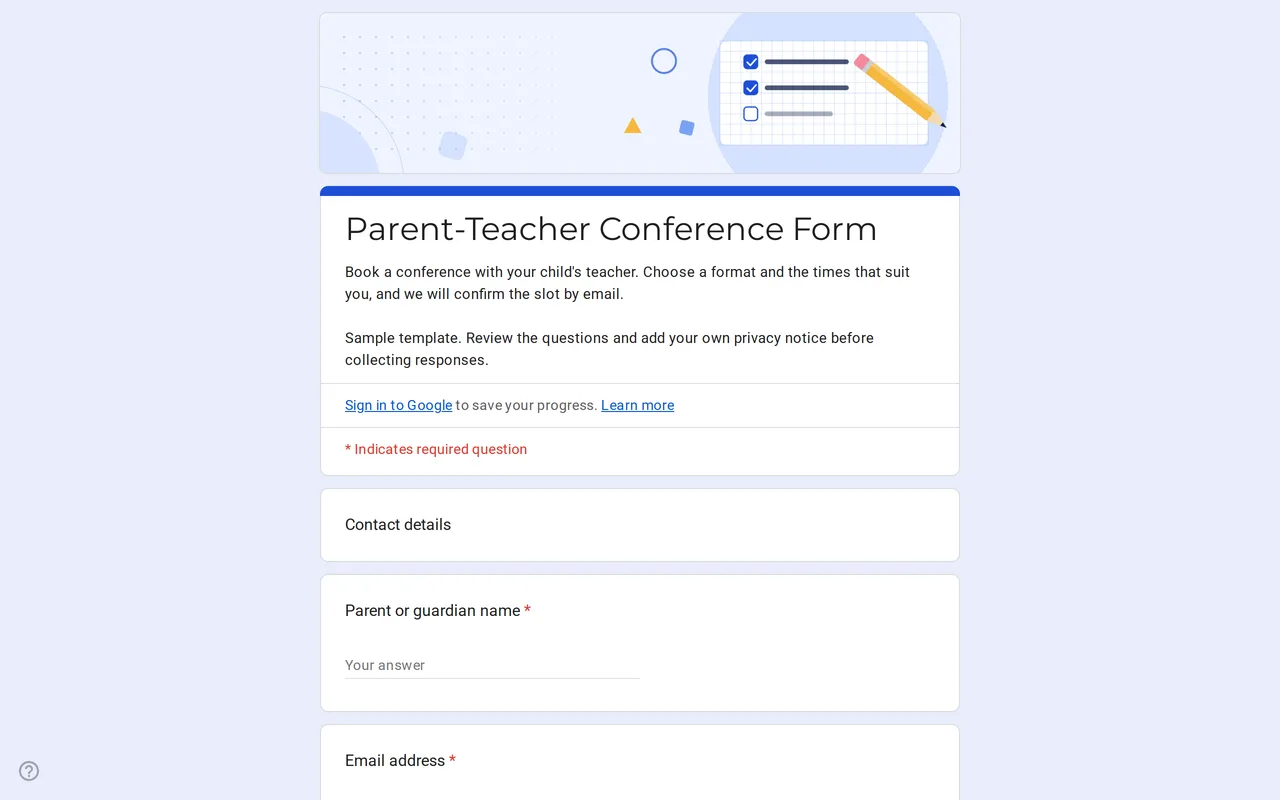 Education Meetrix: Parent Teacher Conference Google Form Template An editable parent teacher conference form for Google Forms: families pick a format, time slots and topics, and you confirm the meeting by email. View template →
 -
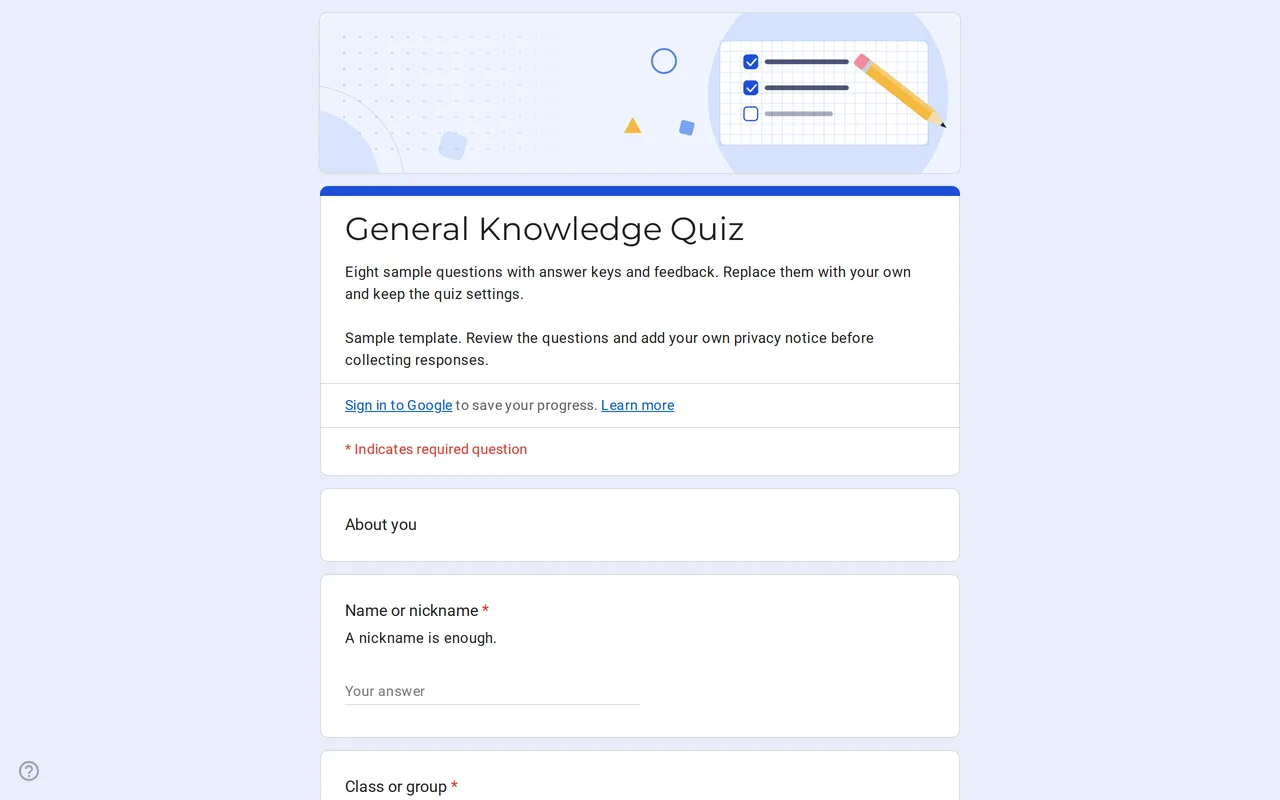 Education Quizora: Free Google Form for Quiz Making A Google Forms quiz template with answer keys, points and feedback already set: eight sample multiple choice and checkbox questions you replace with yours. View template →
 -
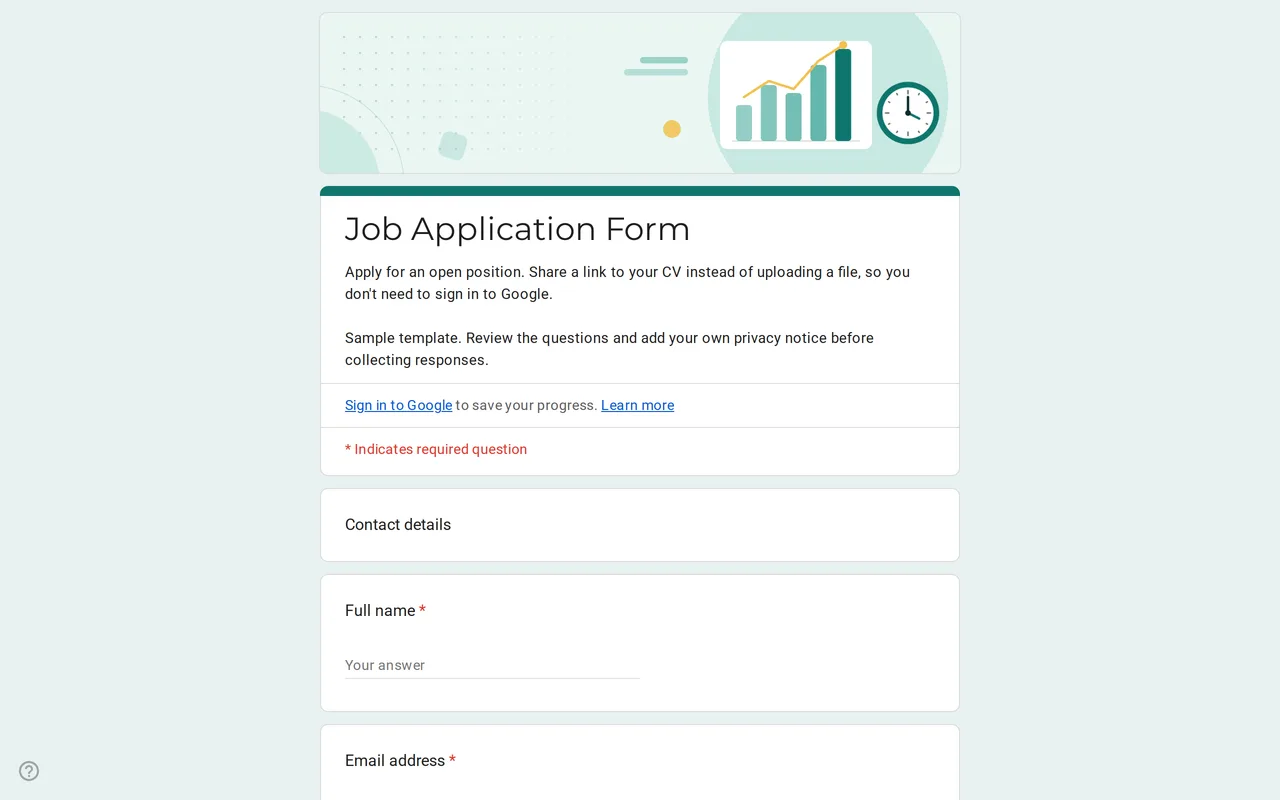 Business Hirova: Google Form Job Application Template Google Forms job application with a role dropdown, start date, experience range and a CV link instead of an upload, so no sign-in is needed. Free. View template →
 -
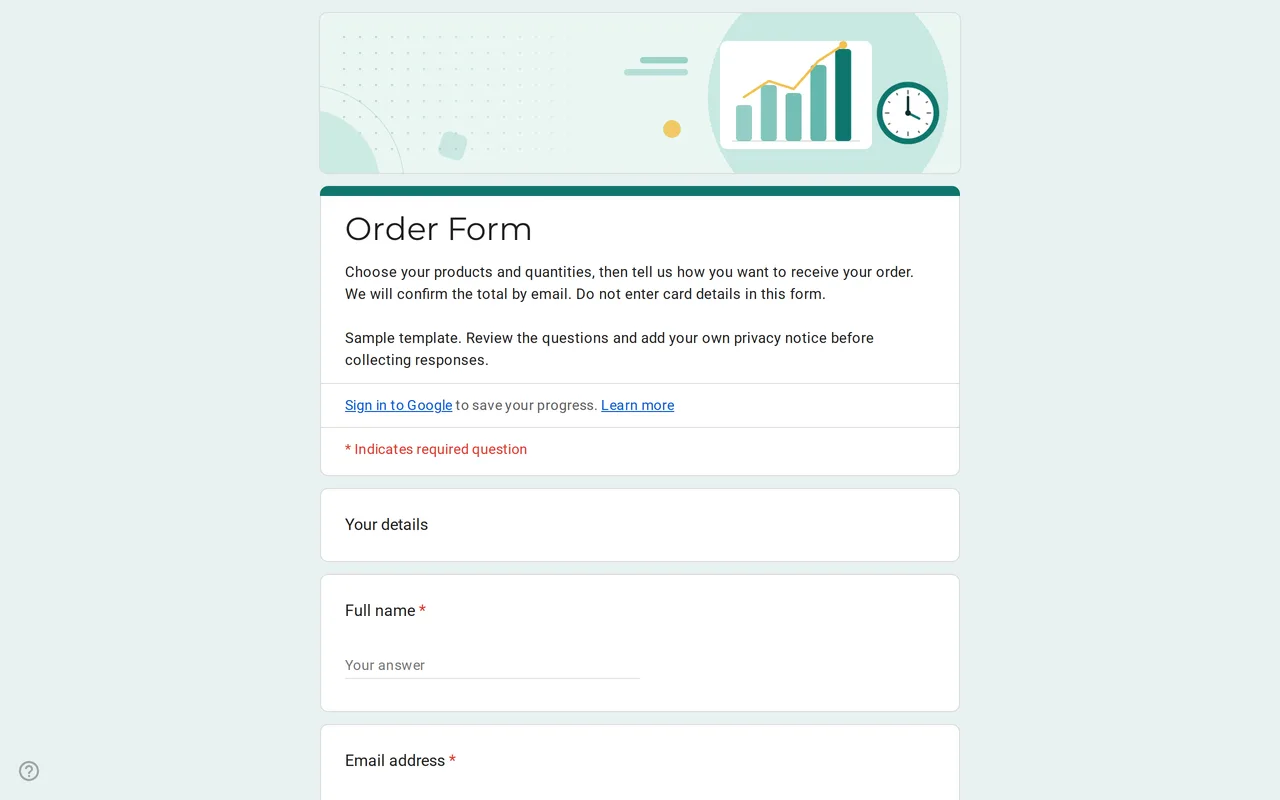 Business Ordix: Google Forms Order Form Template Google form order form with a quantity grid, sizes, pick-up or delivery and a payment preference. It never asks for card details. Free to preview and copy. View template →