
How to Copy or Duplicate a Google Form
There are two ways to end up with your own editable copy of a Google Form: open a copy link for a template someone shares, or make a copy of a form you already own. Both give you a separate form in your Google Drive. This guide covers both, then the steps that make the copy ready to share: renaming it, editing the questions, linking responses to a spreadsheet, replacing the privacy text and publishing it.
Copy a Google Form template with a copy link
Every template on Formtorial has two buttons. Preview opens the published form, the same page your respondents will see, so you can click through it without copying anything. Use this template opens a copy link: a link to the form that ends in "/copy" instead of "/edit" or "/viewform".
- Click Use this template on the template page.
- Sign in to your Google account if you are asked to. The copy is saved in the Drive of whichever account is signed in, so check the account picker if you use more than one.
- Google asks whether you want to make a copy of the form. Confirm.
- The copy opens in the Google Forms editor, usually named "Copy of" followed by the template name.
This kind of link is sometimes called a force copy link. It only works when the owner has shared the form so that others can view the file. The link you get when you answer someone else's form, the one ending in "/viewform", does not let you copy it: to reuse a form you do not own, ask the owner for a copy link or for editor access.
How to make a copy of a Google Form you own
To duplicate one of your own forms, for example to reuse last year's registration form:
- Open the form in the Google Forms editor.
- Open the three-dot menu at the top right and choose Make a copy.
- Give the copy a name, pick a Drive folder if you want, and confirm.
You can also right-click the form in Google Drive and choose Make a copy. To copy a Google Form to another account, share the form with that account as an editor, sign in to it and make the copy there; the copy then belongs to the second account.
What a duplicated Google Form keeps
A copy keeps the questions, answer options, sections, branching, quiz answer keys, theme and most settings. It does not bring the responses with it: the copy starts empty, and the original keeps its own responses and linked spreadsheet, so you will link the copy to a spreadsheet again.
Rename the copy and edit the questions
A Google Form has two names: the file name shown in Drive and the title respondents see at the top of the form. Change both, so you do not end up with a respondent-facing form titled "Copy of RSVP Form". Then go through the questions. The templates use sample choices, such as Product 1, Position A or Saturday 9:00 to 11:00, that are meant to be replaced. Check which questions are marked required, and if the form branches, click each section's "after section" setting to make sure answers still lead to the right place after your edits.
Check the Google Forms settings tab
Settings decide who can answer and what you collect. Turn email collection on only if you need it. Limiting people to one response requires respondents to sign in to Google, and so do file upload questions. In a quiz, choose when scores are released.
Link your Google Form copy to Google Sheets
Open the Responses tab and choose Link to Sheets. You can create a new spreadsheet or pick an existing one, where the responses go into a new tab. From then on, every submission appears as a row. For a timesheet or an order form this is where the useful work happens: totals, filters and charts live in the spreadsheet, not in the form.
Replace the privacy text in your Google Form
Every Formtorial template ends with a privacy section. The paragraph in it is placeholder text with a bracketed name, such as [Organizer name] or [Company name]. Replace it with who is collecting the data, what it is used for and how long you keep it, and add a link to your privacy policy. Keep the required "I have read the privacy notice" checkbox, and keep the communications checkbox optional and separate, so agreeing to updates is never a condition for submitting. If you do not send newsletters or updates, delete that checkbox.
Publish the copy and share the Google Form link
Preview the form one last time with the eye icon and submit a test response, then delete it from the Responses tab. If your editor shows a Publish button, publish the form so it accepts responses. Use Send or the link option to share it by email, as a link or as embed code for a website. Share the responder link, never the editor link from your browser's address bar: the editor link only works for people you have added as collaborators. To stop collecting answers later, turn off accepting responses on the Responses tab.
Need a starting point? Browse the event templates, the templates for teachers, the business templates or the survey templates.
Browse templates
-
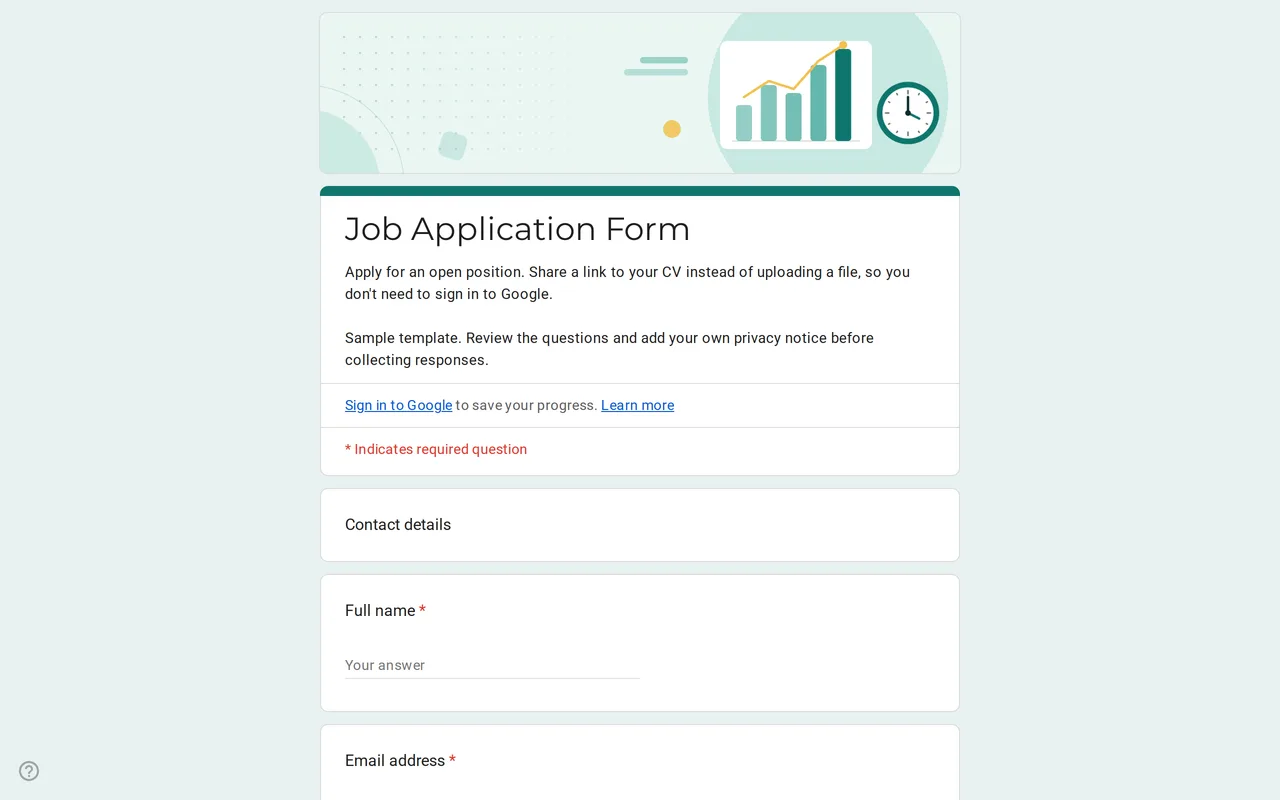 Business Hirova: Google Form Job Application Template Google Forms job application with a role dropdown, start date, experience range and a CV link instead of an upload, so no sign-in is needed. Free. View template →
 -
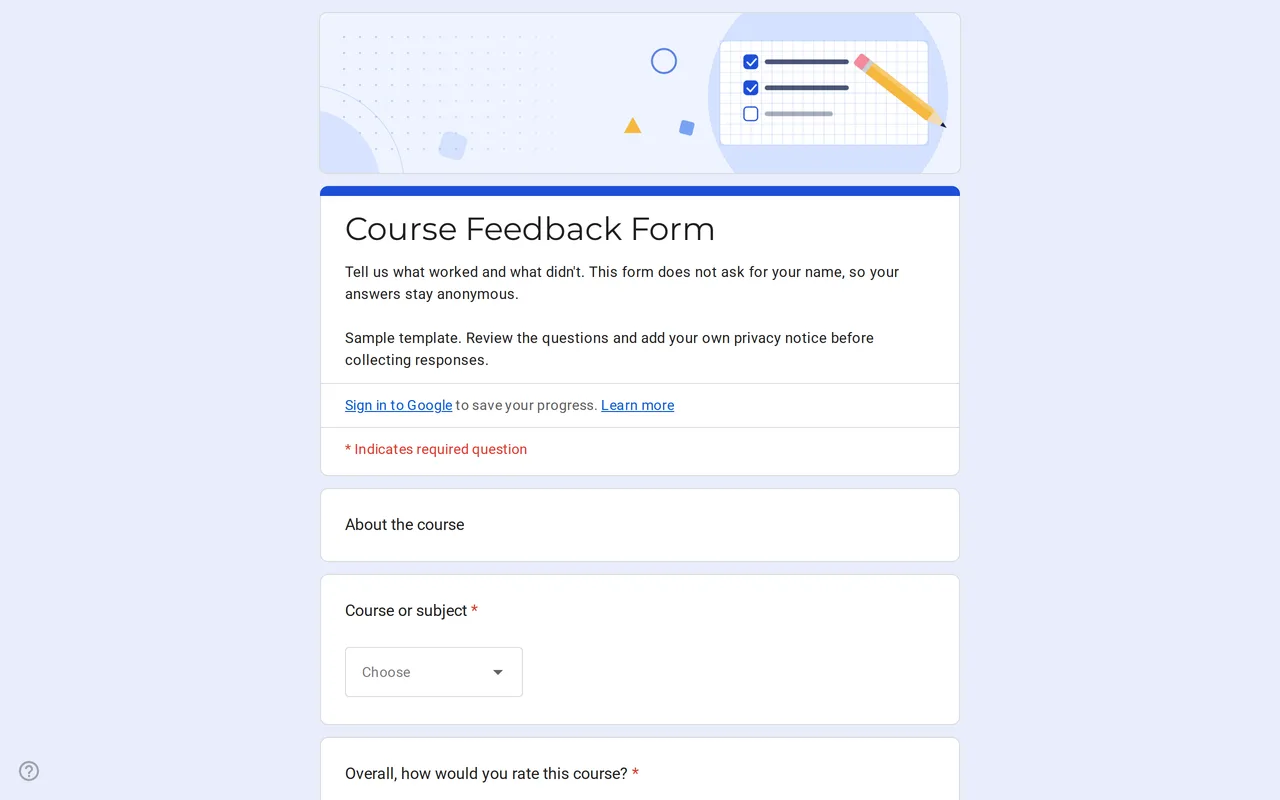 Education Klasso: Course Evaluation Google Form A student feedback Google Form that stays anonymous: overall rating, a grid for pace, materials and assignments, and two open questions. Free to copy. View template →
 -
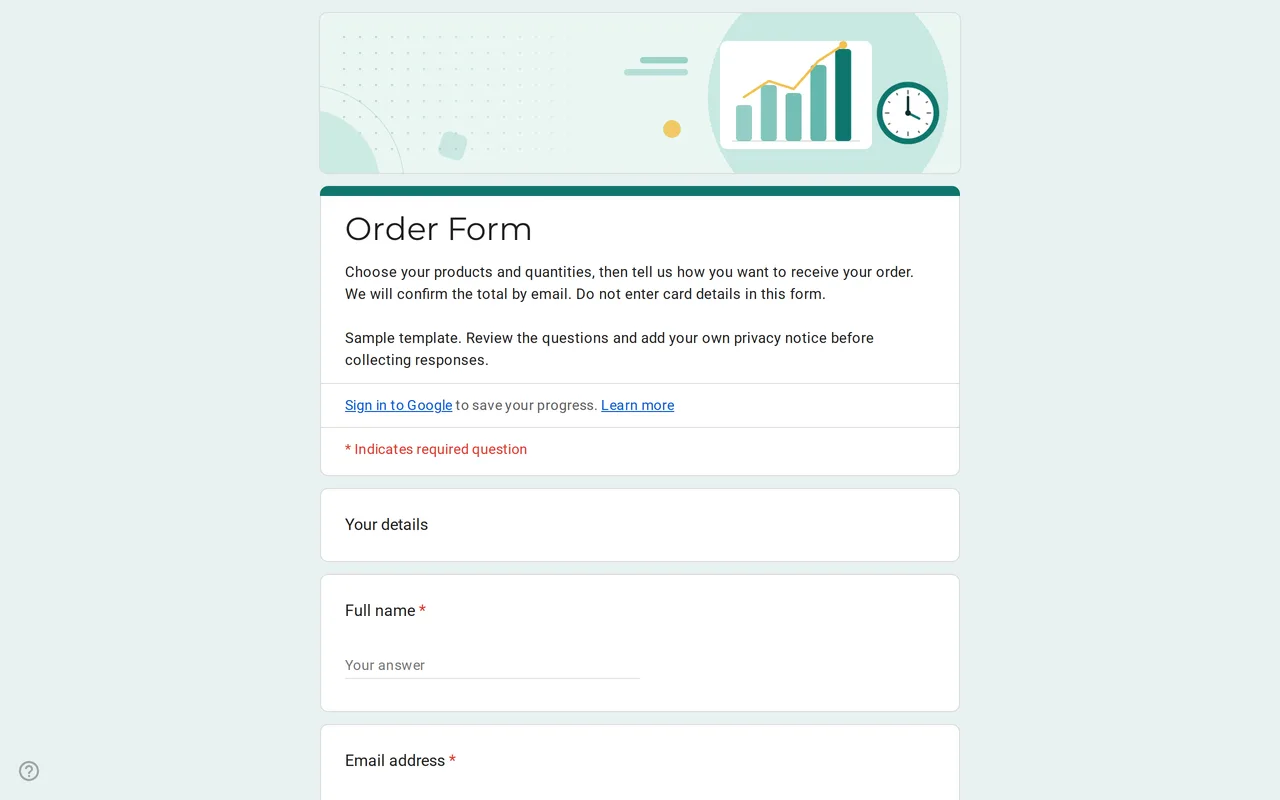 Business Ordix: Google Forms Order Form Template Google form order form with a quantity grid, sizes, pick-up or delivery and a payment preference. It never asks for card details. Free to preview and copy. View template →
 -
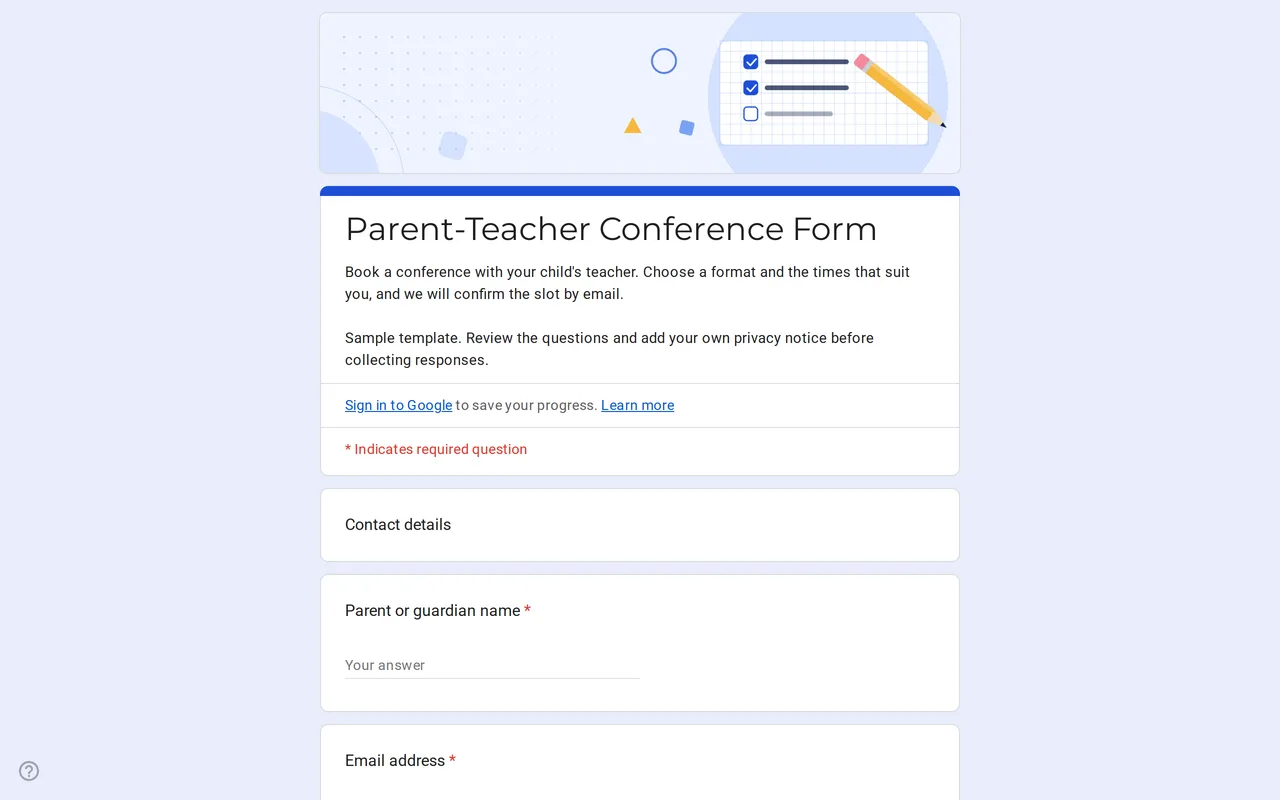 Education Meetrix: Parent Teacher Conference Google Form Template An editable parent teacher conference form for Google Forms: families pick a format, time slots and topics, and you confirm the meeting by email. View template →