
Eventra: Google Forms Event Registration Template
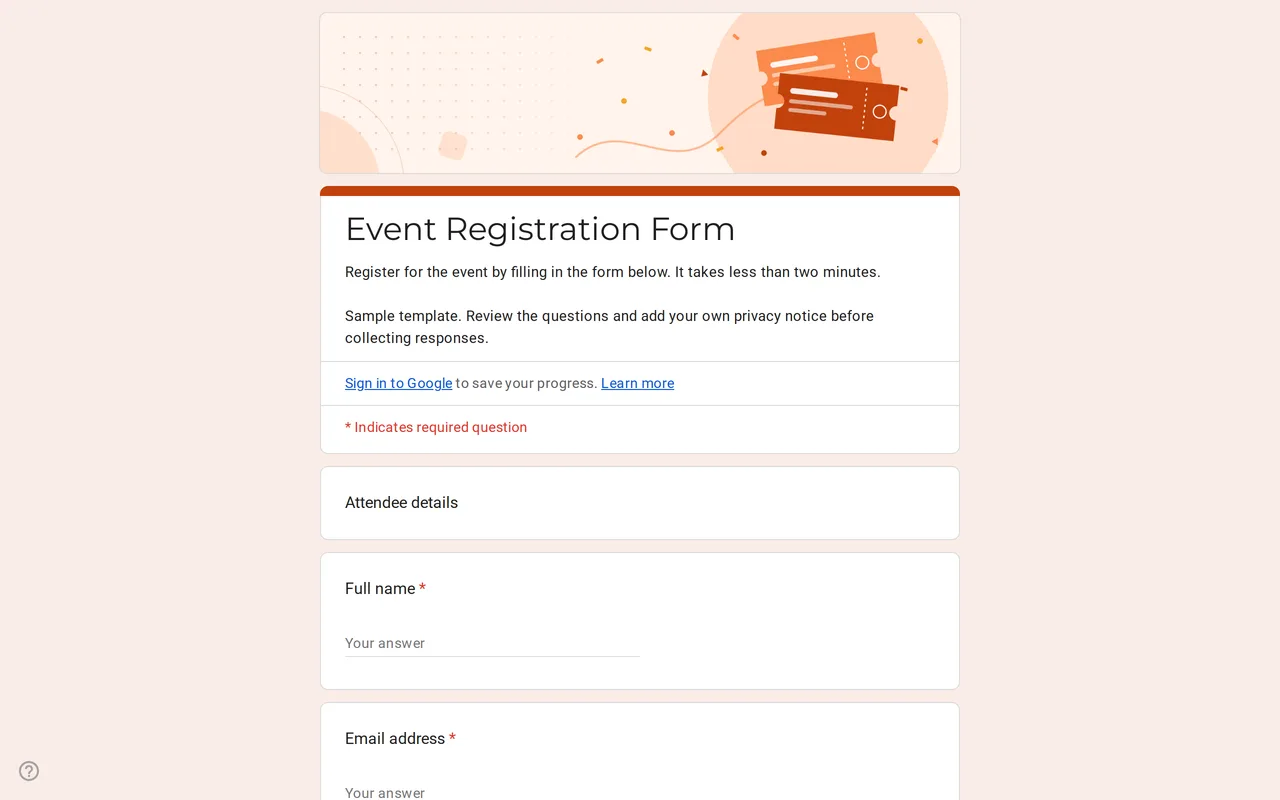
How it works: “Use this template” opens Google’s copy screen. Sign in to your Google account and the form is copied to your own Drive, where you can edit every question. Need help copying the form?
Questions in this event registration Google Form
Three pages in a fixed order, followed by the privacy section.
-
Attendee details
- Full name * Short answer
- Email address * Short answer
- Phone number Short answer
- Company or organization Short answer
- Job title Short answer
-
Registration
- Ticket type * Multiple choice
- How will you attend? * Multiple choice
- Which sessions will you attend? Checkboxes
- How many guests are you bringing? Linear scale
-
Preferences
- Menu preference Multiple choice
- How did you hear about this event? Dropdown
- Questions or comments for the organizers Paragraph
-
Privacy
- I have read the privacy notice * Checkbox
- I would like to receive news about future events by email Checkbox · optional
Eventra is a Google Forms event registration template for conferences, workshops, meetups and training days: attendee details first, then ticket type, attendance mode and sessions, then a few logistics questions and a privacy section. Preview it to click through the three pages, then copy it to your Drive and replace the sample tickets and session names with your own.
Google Forms event registration for conferences and workshops
A registration form has a different job from an RSVP. An RSVP asks a guest whether they are coming; a registration collects what you need to organize each attendee: who they are, which ticket they hold, whether they will be in the room or online, and which sessions they plan to join. If you only need a yes or no and a headcount, the RSVP form is shorter. If you need people to cover shifts or tasks rather than attend, use the volunteer sign-up sheet.
How this registration Google Form template is organized
The form runs in three pages with a progress bar, so nobody faces one long scroll. Attendee details asks for a name and email (both required), an optional phone number, the company and the job title. Registration holds the decisions: a required ticket type, a required in-person or online choice, a checkbox list of sessions and a 0 to 5 scale for the number of guests. Preferences covers the menu (standard, vegetarian or vegan), how the person heard about the event and an open box for questions. There is no branching: every registrant sees every page, which keeps your response spreadsheet in the same column order for everyone.
The menu question stops at a preference on purpose. Allergy and dietary questions can reveal health information, so if you need them, collect them separately with a clear reason.
Customizing the Google Form template for event registration
- Rename the file and the form title, and write the date, venue and start time into the description.
- Replace the four sample ticket types and the five sample sessions with yours. Delete Online if the event is in person only, and delete the guests scale if tickets are personal.
- Drop Company and Job title for a public or community event, where they add nothing.
- Add the source options that match where you actually promote the event.
- Replace the bracketed privacy text with who is collecting the data and why, and a link to your privacy policy.
Google Form registration settings to check before sharing
Google Forms does not email attendees on its own. If you want each person to receive a copy of their answers, switch on email collection in the Settings tab and delete the Email address question so nobody types it twice. Leave "Limit to 1 response" off unless every attendee has a Google account, because it forces respondents to sign in.
Two limits are worth knowing in advance. A Google Form does not take payments: for paid tickets, send payment details by email after registration. It also cannot cap a single ticket type or session; the current editor can close the whole form on a date or after a number of responses, and a full session has to be edited out by hand or handled with a Marketplace add-on. Link the form to Google Sheets from the Responses tab to get one row per attendee, ready to filter by ticket or session.
More layouts for hosts sit in the event Google Form templates, and the copying guide covers renaming, linking responses and sharing the form.
More templates
-
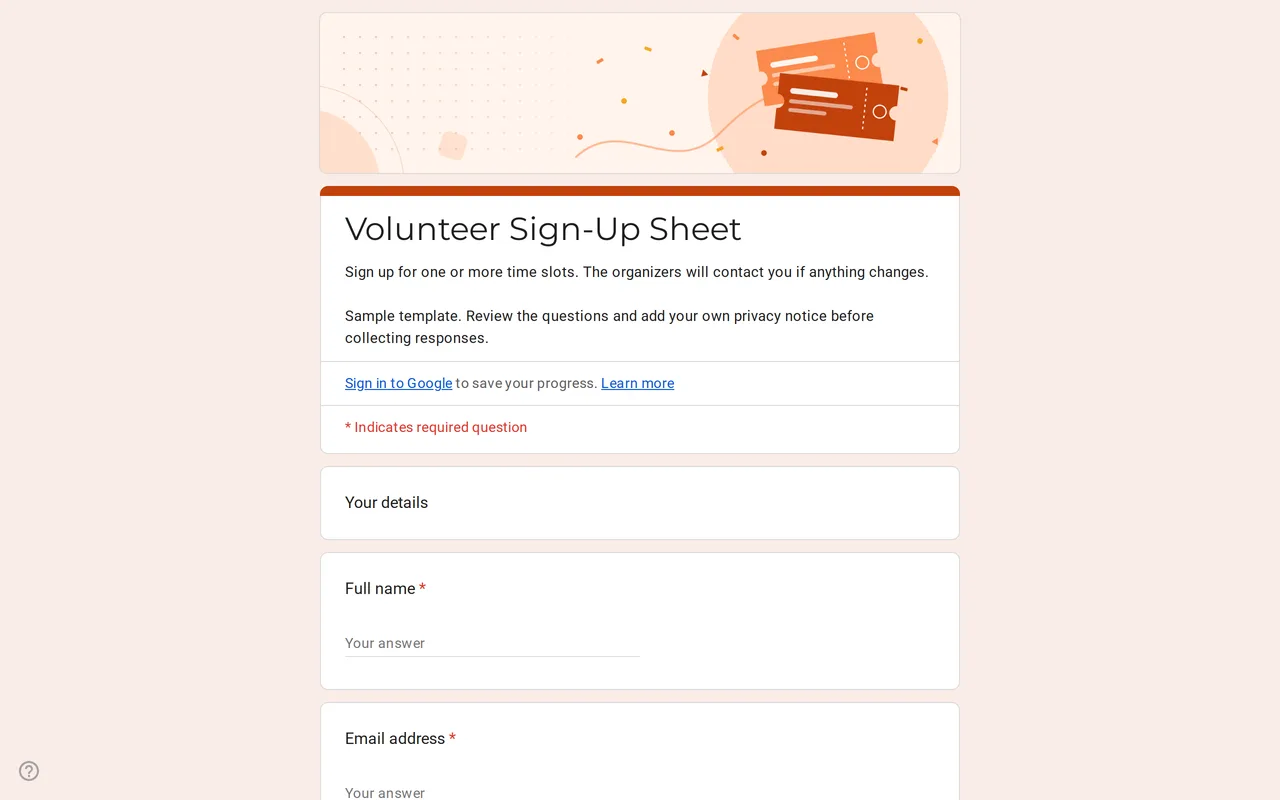 Events Slotly: Google Forms Sign-Up Sheet for Volunteers Google Form sign up sheet with time slots, roles and contact details for volunteers. Preview it, copy it free and replace the sample shifts. View template →
 -
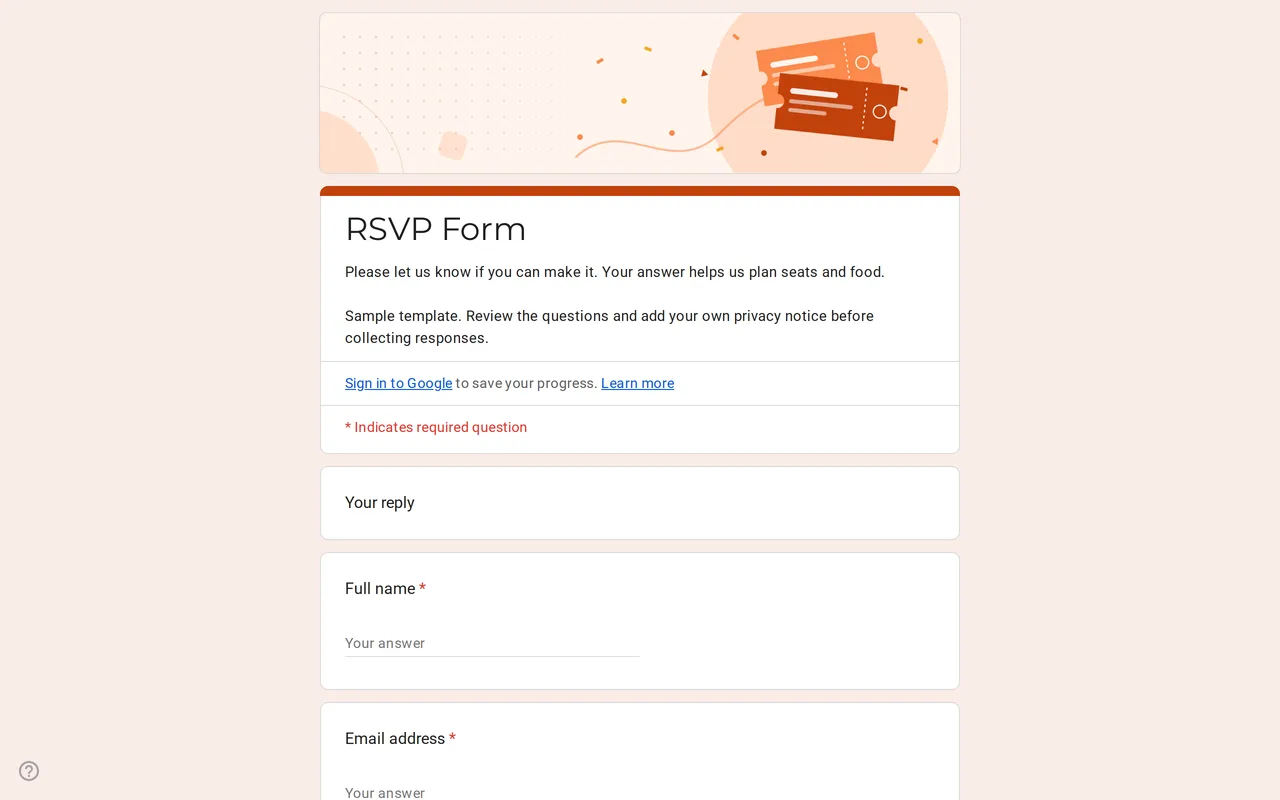 Events Replya: Google Form Template for RSVP Google Forms RSVP template that branches on the reply: guests who say yes add party size, names and menu choice. Preview it and copy it free. View template →
 -
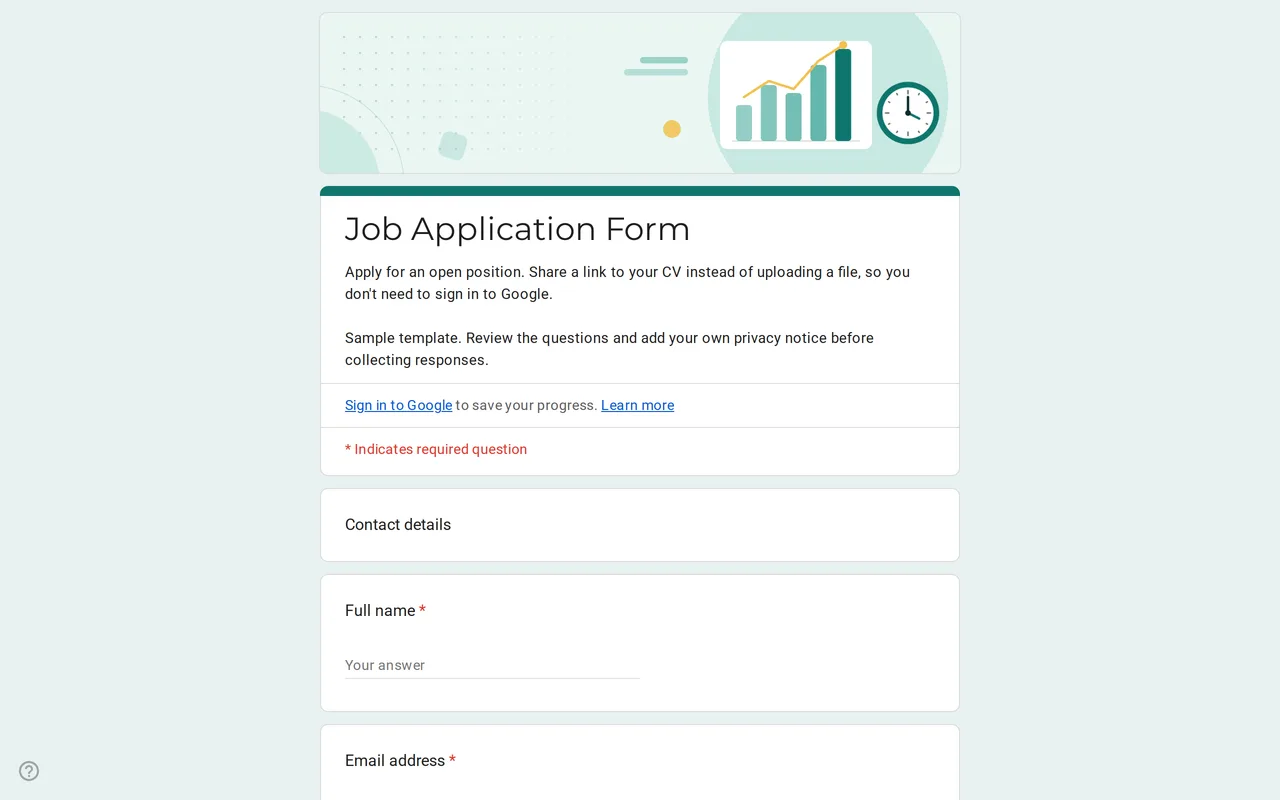 Business Hirova: Google Form Job Application Template Google Forms job application with a role dropdown, start date, experience range and a CV link instead of an upload, so no sign-in is needed. Free. View template →
 -
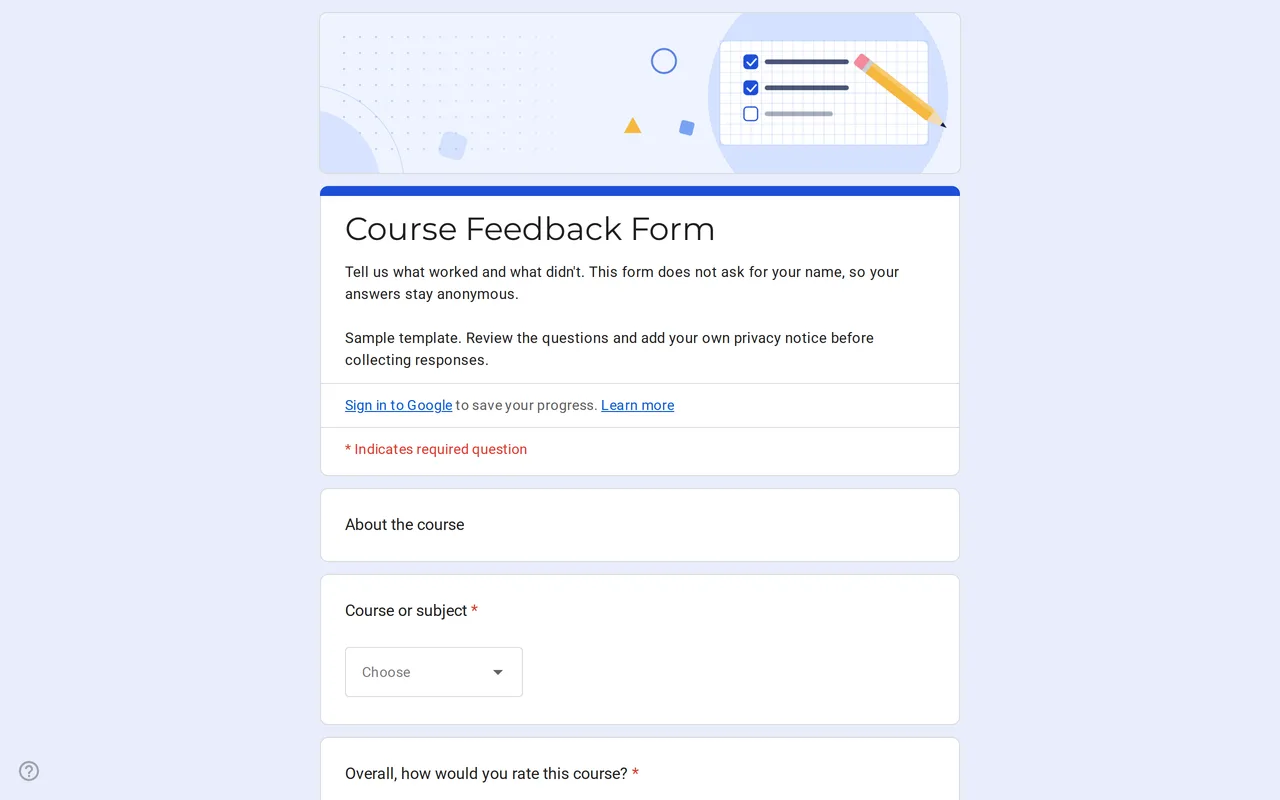 Education Klasso: Course Evaluation Google Form A student feedback Google Form that stays anonymous: overall rating, a grid for pace, materials and assignments, and two open questions. Free to copy. View template →